Showing posts with label Linux. Show all posts

Tuesday, 18 December 2018

Fixing your BASH colours

The default colours on Windows Linux Subsystem are terrible.
But the issue is a BASH problem and not a WLS issue.

To fix it to something nicer...
By default, the colours in windows 10 BASH shell are so terrible it's pretty hard to read the folder names. To fix this append the following two lines to your $HOME/.bashrc file.

LS_COLORS='rs=0:di=1;35:ln=01;36:mh=00:pi=40;33:so=01;35:do=01;35:bd=40;33;01:cd=40;33;01:or=40;31;01:su=37;41:sg=30;43:ca=30;41:tw=30;42:ow=01;36;40:st=37;44:ex=01;32:*.tar=01;31:*.tgz=01;31:*.arj=01;31:*.taz=01;31:*.lzh=01;31:*.lzma=01;31:*.tlz=01;31:*.txz=01;31:*.zip=01;31:*.z=01;31:*.Z=01;31:*.dz=01;31:*.gz=01;31:*.lz=01;31:*.xz=01;31:*.bz2=01;31:*.bz=01;31:*.tbz=01;31:*.tbz2=01;31:*.tz=01;31:*.deb=01;31:*.rpm=01;31:*.jar=01;31:*.war=01;31:*.ear=01;31:*.sar=01;31:*.rar=01;31:*.ace=01;31:*.zoo=01;31:*.cpio=01;31:*.7z=01;31:*.rz=01;31:*.jpg=01;35:*.jpeg=01;35:*.gif=01;35:*.bmp=01;35:*.pbm=01;35:*.pgm=01;35:*.ppm=01;35:*.tga=01;35:*.xbm=01;35:*.xpm=01;35:*.tif=01;35:*.tiff=01;35:*.png=01;35:*.svg=01;35:*.svgz=01;35:*.mng=01;35:*.pcx=01;35:*.mov=01;35:*.mpg=01;35:*.mpeg=01;35:*.m2v=01;35:*.mkv=01;35:*.webm=01;35:*.ogm=01;35:*.mp4=01;35:*.m4v=01;35:*.mp4v=01;35:*.vob=01;35:*.qt=01;35:*.nuv=01;35:*.wmv=01;35:*.asf=01;35:*.rm=01;35:*.rmvb=01;35:*.flc=01;35:*.avi=01;35:*.fli=01;35:*.flv=01;35:*.gl=01;35:*.dl=01;35:*.xcf=01;35:*.xwd=01;35:*.yuv=01;35:*.cgm=01;35:*.emf=01;35:*.axv=01;35:*.anx=01;35:*.ogv=01;35:*.ogx=01;35:*.aac=00;36:*.au=00;36:*.flac=00;36:*.mid=00;36:*.midi=00;36:*.mka=00;36:*.mp3=00;36:*.mpc=00;36:*.ogg=00;36:*.ra=00;36:*.wav=00;36:*.axa=00;36:*.oga=00;36:*.spx=00;36:*.xspf=00;36:';
export LS_COLORS
If these changes are not to your liking check out these links:


Friday, 26 February 2016

How To Use SSH to Connect to a Remote Server in Ubuntu VIA a BASTION


What Is SSH?


One essential tool to master as a system administrator is SSH.

SSH, or Secure Shell, is a protocol used to securely log onto remote systems. It is the most common way to access remote Linux and Unix-like servers, such as VPS instances.

In this guide, we will discuss how to use SSH to connect to a remote system.

It is often good practice to set up a Bastion server which is essentially a Gateway to other servers.
If you do this then you can configure your otheer servers to only allow SSH access from your Bastion ONLY.

This post is to help with that process...


SSH connection via the Bastion

SSH into any instance should be done via the Bastion server.

SSH-ing from the Bastion server into a different server generally requires the Bastion public key to be in the authorized_keys in the target server.

Connecting to a new instance, where the Bastion public key is not in authorized_keys

Ensure that the security group for the new instance allows connection from the Bastion.

You can use SSH agent forwarding. This technique allows you to use a keypair to connect from the Bastion, without the private key needing to be on the Bastion.

You should know the keypair the new instance is created with. Open Pageant (on your PC) and import the keypair corresponding to your new instance.

Note: You know Pageant is running if you check the Notification Icons on your PC's task bar.


The other way you know it isn't running is if your Linux server gives the following error following issuing the ssh-add -L command:
In putty, connect to the Bastion using its private key, but in ”Connection → ssh → auth” check the box for Allow agent forwarding.

On the Bastion server, you can check that the key is available by calling:
  ssh-add –L
Now from the Bastion server, ssh into the target instance:
  ssh [PRIVATE IP OF TARGET INSTANCE]
Once you are here, add the Bastion public key to authorized_keys so that agent forwarding won't be required for future connections from the Bastion.
Or leave it as is to make things easy.

Friday, 11 April 2014

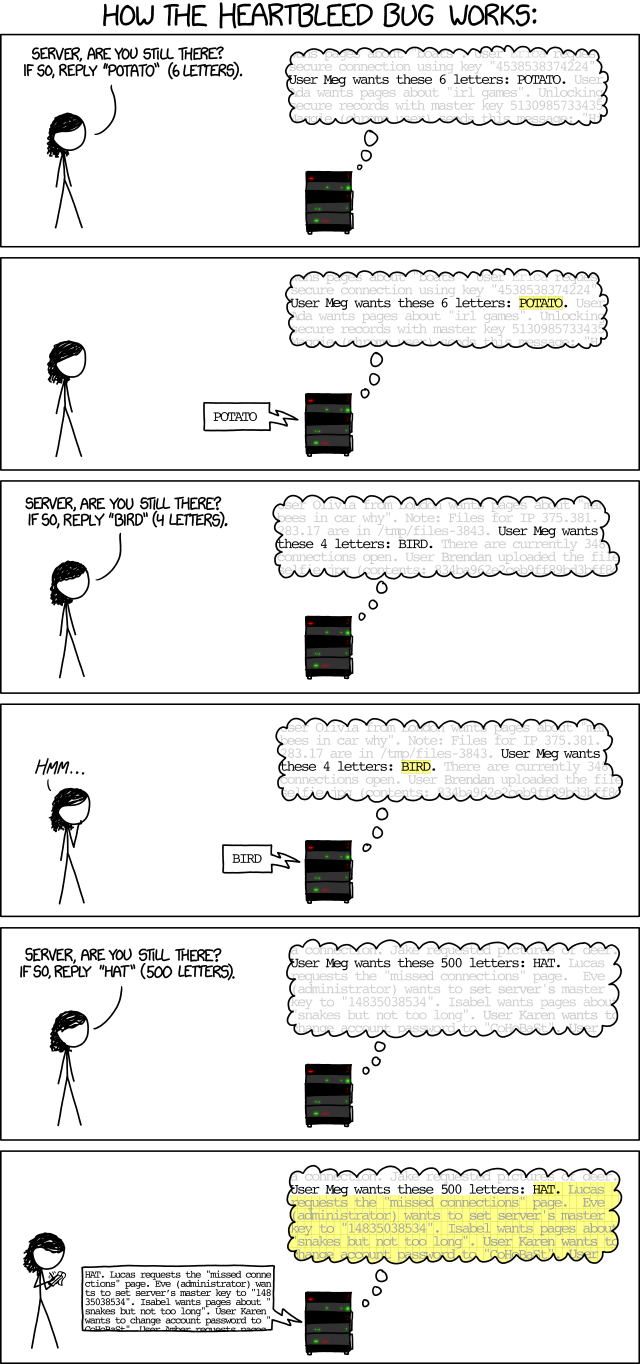
Cool tip of the day: Heartbleed exploit

As you may have heard there is a serious problem with SSL.
But what to do about it?
The majors seem to be running around fixing things but what do us minows do?

I would suggest running this check first ... Heartbleed server test (http://filippo.io/Heartbleed/).

If you are not sure what this all means I found this link helpful

And in closing:

Friday, 15 March 2013

Cool tip of the day - Newrelic server and app monitoring

 This looks worth an invertigate if you have some servers to watch: https://newrelic.com/

They say on their web site that they do the following:
New Relic is the all-in-one web application performance tool that lets you see performance from the end user experience, through servers, and down to the line of application code.

They seem to have the free try before you buy option while their full price offering is $24 per month. This could be considered expensive for some uses especially as it seems to be offering much that Google analytics also offers.

But one to think about nether the less.

Tuesday, 12 March 2013

Quick Guide to setting up Tomcat on Linux

Tomcat's default website

Before starting

Check for the process:


# ps ax | grep tomcat

If it is installed it will show up in the response (don't be fooled by just grep tomcat).

And check the OS (see):
$ cat /etc/*-release
$ uname -m

This will tell you the release and whether it is 64 or 32 bit.

Install the Java JDK

Versions of Java can be installed using the “yum” tool (this will require super user rights). 
See: http://wiki.centos.org/HowTos/JavaOnCentOS


When installed I find that a convenience symbolic link "/java" is helpful.
Often the Yum tool places the files here /usr/lib/jvm/java-6-oracle
NB.
ln -s [TARGET DIRECTORY OR FILE] ./[SHORTCUT]

You can download the latest JDK here: http://www.oracle.com/technetwork/java/javase/downloads/index.html
The problem with this site is that it asks for you to accept the license conditions before you can down load the file.
This can be done by checking the url you get after browsing the appropriate links (see but best done using firefox not IE).

We'll install the latest JDK, which is JDK 7, Update 17. The JDK is specific to 32 and 64 bit versions.

My CentOS box is 64 bit, so I'll need: jdk-7u17-linux-x64.tar.gz.

If you are on 32 bit, you'll need: jdk-7u17-linux-i586.tar.gz
ie.

wget http://download.oracle.com/otn-pub/java/jdk/7u17-b02/jdk-7u17-linux-i586.tar.gz

NB. I'm not sure this works at all so I used WinSCP and transferred the file.

Start by creating a new directory /usr/java: (# mkdir /usr/java).
Download the appropriate JDK and save it to /usr/java directory we created above.

Unpack jdk-7u17-linux-x64.tar.gz in the /usr/java directory using tar -xzf:
tar -xzf jdk-7u17-linux-x64.tar.gz  

DON'T FORGET!!! 
... Set JAVA_HOME and put Java into the path of our user!

JAVA_HOME=/usr/java/jdk1.7.0_17
export JAVA_HOME 
PATH=$JAVA_HOME/bin:$PATH 
export PATH 
   
NB. The export command will marks each VAR for automatic export to the environment of subsequently executed commands i.e. make the local shell variable VAR global. (see)

Check you did it correctly:

#echo $JAVA_HOME 
#java -version

One GOTCHA at this point can be the error "-bash: /usr/java/jdk1.7.0_17/bin/java: /lib/ld-linux.so.2: bad ELF interpreter: No such file or directory"

This is easy to fix (see here) by issuing this command:
yum -y install glibc.i686
 

Download & Install Tomcat

If necessary versions of Tomcat can be installed by hand or using “yum”.

Details on Tomcat can be found here: http://tomcat.apache.org/ or more specifically: http://tomcat.apache.org/tomcat-7.0-doc/index.html.

We can manually do this as follows (installing Tomcat 7 under /usr/share.).
Download and unzip.

# wget http://mirror.ox.ac.uk/sites/rsync.apache.org/tomcat/tomcat-7/v7.0.37/bin/apache-tomcat-7.0.37.tar.gz
# tar -xzf apache-tomcat-7.0.29.tar.gz

 From this point you should be able to start the process by jumping to /user/share/apache-tomcat-7.0.37/bin and running the start.sh

For more information on starting as a service : see http://www.davidghedini.com/pg/entry/install_tomcat_7_on_centos

NB. I haven't gone into the details of tidying up the service with symbolic links (an exercise for the reader and me to tidy up in future.) 

To check the process is working then the following operation will work:

#curl -I http://localhost:8080


Tuesday, 4 December 2012

Pre-configured stacks ... nice!


http://bitnami.org/stack/tomcatstack
I haven't tried these yet but they look worth a go ...
There are a number of different pre configured stacks for your downloading and installing pleasure.

Including installers for vm-ware ... nice!

Friday, 5 October 2012

Setting the time and date in CENTOS

Sometimes, you may get the following error while trying to sync your Ubuntu server time with the NTP server using "ntpdate" command:

============
~# sudo ntpdate pool.ntp.org
5 Dec 01:32:33 ntpdate[21647]: the NTP socket is in use, exiting
============


The ntpdate command will not run when the NTP server is running. If you run ntpdate and get a response like "the NTP socket is in use", that means your NTP server is running. Stop it with the command:

===
sudo /etc/init.d/ntp stop
===

You can now run ntpdate with the server you want to sync against as an argument. For example, to tell ntpdate to try and sync with "pool.ntp.org", run:

===
sudo ntpdate pool.ntp.org
===

When you're finished testing remember to start NTP back up again:

===
sudo /etc/init.d/ntp start
===

Tuesday, 18 September 2012

wget HEAD request?

I wanted  to send HTTP HEAD request using wget, is it possible I wondered?

No as it's not wget, but you can do that quite easily by using curl.
curl -I http://www.superuser.com/
Produces this output:
HTTP/1.1 301 Moved Permanently                        
Content-Length: 144                       
Content-Type: text/html; charset=UTF-8     
Location: http://superuser.com/
Date: Sat, 09 Oct 2010 19:11:50 GMT
 
Thanks superuser.com!

Download Java JRE/JDK 7 from shell

File under the heading of Arrgh @#@?#&!

While setting up Tomcat7 from a console window on CENTOS I thought I would download the JDK but you can't because the fhe first step to do so, is to wget (download) the rpm / bin install file?

But as a fellar called Shmuel points out "Well it seems like since Java7, you must accept license agreement on the download page, before you can download java, which make sense. The problem with that is that you cannot accept this license agreement if you are on shell, doing wget."

In summary:
  1. Use Firefox & enable Fiddler to spy on your browser history;
  2. Go and find the down load you need from here;
  3. Accept the licence conditions and start the down;
  4. Then copy from fiddler the URL and most importantly the authorisation parameter which you can just add to your wget url.