[CAVEAT:NOT TRIED JUST SOUNDS COOL!!!]
IKVM.NET is a JVM for the Microsoft .NET Framework and Mono. It can both dynamically run Java classes and can be used to convert Java jars into .NET assemblies. It also includes a port of the OpenJDK class libraries to .NET.
http://sourceforge.net/projects/ikvm/
Showing posts with label C#. Show all posts
Showing posts with label C#. Show all posts
Wednesday, 26 February 2014

Friday, 1 November 2013
Setting up Eclipse (again)
I have documented the setting up of eclipse before but in the almost two years since that post I have learned a few new tricks. SO I'm documenting them here in case they are useful to someone else.
I have this time around down loaded the version 7 JDK from here (http://www.oracle.com/technetwork/java/javase/downloads/jdk7-downloads-1880260.html). (Don't forget to pick the right version and accept the licensing terms).
On a windows PC the easiest location to install all of these files is under a single directory structure ... with NO spaces in the name.
I will use "c:\development" throughout this post (cos it's what I use).
So:
So:
My current favorite is the Spring Tool Suite (STS) since it comes with may of the tools and plugins pre-installed.
So:
I've written about the set of plugins I use before (here, & here and here).
I'm not going to detail which ones I'm just going to list those that I use and include a 'bookmark.xml' import to list them.
The Plugins I use are:
Interesting ones:
The best version if you are installing to windows is the full instalation tool sooner than the zip version.
So:
Java JDK
You will probably have Java installed, but it will only be the JRE, which will hot have all the environment variables established. The JDK can be found by searching on Google and it will probably be the top link.I have this time around down loaded the version 7 JDK from here (http://www.oracle.com/technetwork/java/javase/downloads/jdk7-downloads-1880260.html). (Don't forget to pick the right version and accept the licensing terms).
On a windows PC the easiest location to install all of these files is under a single directory structure ... with NO spaces in the name.
I will use "c:\development" throughout this post (cos it's what I use).
So:
- Download the JDK installer;
- Place it in a new folder "c:\development\java";
- Run the installer (as administrator);
- Wait for it to start & press the next buttons;
- At the Optional Features deselect the "Public JRE" as you already have one;
- Change the installed directory to "c:\development\java\jdk1.7.0_45\" (where 1.7.0_45 is the JDK version);
- Now install by pressing next;
- Set an environment variable JAVA_HOME = C:\development\java\jdk1.7.0_45;
- Add to the PATH environment variable %JAVA_HOME%\bin;
- Open a command prompt and check that the maven command "java-version" runs and gives the correct version.
Maven
Since my last version of this install guide I have been working with Maven, which is a build tool. I had produced a nice set of ANT scripts to do what MAVEN does but I have decided that this is just too much like reinventing the wheel.So:
- Download the zip;
- Place into a new folder "c:\development\maven";
- Extract the files to "C:\development\maven\apache-maven-3.1.1";
- Create an environment variable M2 = C:\development\maven\apache-maven-3.1.1;
- Add to the PATH environment variable %M2%\bin;
- Open a command prompt and check that the maven command "mvn -version" runs and gives the correct version.
Eclipse
With the JDK set up now install the version of Eclipse you prefer.My current favorite is the Spring Tool Suite (STS) since it comes with may of the tools and plugins pre-installed.
So:
- Download the latest STS; from http://spring.io/tools/sts/all ensuring you get the right version for your OS
- Place it in a new folder called "c:\development\eclipse";
- Run the installer (as administrator);
- Accept the licensing agreement;
- Accept the default installation location which should be C:\development\eclipse\springsource;
- Install all the toys;
- Set up the JDK path to be C:\development\java\jdk1.7.0_45;
- It may complain that a 32-bit or 64-bit version is needed which means you made a mistake at step #1;
- When prompted for a short cut group call it "Java Development";
- Launch the tool set to ensure it works;
- When prompted for a workspace create one with out spaces ie. "C:\development\projects\default-eclipse";
- You may be prompted to install any updates if they exist;
- Create a "Hello World" project and check whether you have Java set up correctly;
Eclipse plugins (optional)
Having installed Eclipse it is now a mater of installing a set of plugins. These vary accourding to taste and your development purpose; mine is Java web development.I've written about the set of plugins I use before (here, & here and here).
I'm not going to detail which ones I'm just going to list those that I use and include a 'bookmark.xml' import to list them.
The Plugins I use are:
- Sysdeo JSP/Tomcat Manager - This plugin allows you to start or stop the tomcat environment and perform remote debuging;
- Log4e - Log4E is an Eclipse Plugin which helps you to use your logger easily in Java Projects;
- StartExplorer- This plug-in gives you a convenient way to examine a file or a folder outside the Eclipse workspace with your file manager or open a shell/cmd.exe and do all this by adding a few entries to Eclipse's context menus.
- SubEclipse - Links to your subversion source control.
- Aptana Studio - HTML, CSS etc editing
Interesting ones:
XAMPP
This has to be the sweetest install of the set. It is an entire Apache LAMP stack installer with Tomcat included.The best version if you are installing to windows is the full instalation tool sooner than the zip version.
So:
- Download the latest XAMPP;
- Place it in a new folder called "c:\development\xampp";
- Run the installer (as administrator);
- Follow the next buttons and select all the toys;
- Select the installation to c:\development\xampp\1.8.3 (where 1.8.3) is the current version;
- Wait a long time for the installation top complete;
- Start the control panel and start up HTTPD;
- Open a browser and check http://localhost, if you don't get a page titled XXXX then you may have something else running on port 80.
The usual culprits are IIS or Skype these systems need to be configured to use any thing other than 80,443, 8080, 8443 (which are all ports used by Httpd & Tomcat);
Shut those services down or change their ports (see articles on IIS or Skype respectivly) and retry (PS. don't forget to force your browser to refresh the page or you could be thinking it is still there). - Tomcat should have its admin user set up.
You can check this by browsing to http://127.0.0.1:8080/manager/status.
If it fails shut down tomcat & edit the web-users.xml file (in the above config this is C:\development\xampp\1.8.3\tomcat\conf\web-users.xml);
Add a set of nodes as follows:<role rolename="manager-gui"/> <user username="tomcat" password="s3cret" roles="manager-gui"/>
Then restart.
Friday, 20 January 2012
Setting up Eclipse check list (Part 3) - Plugins
Plugins are probably very personal to what you are doing.
My set is for:
JSP tomcat development
It is fun to have PHP running in Tomcat and not too hard to achieve. Especially if you follow the instructions at PHP/Java Bridge or even here.
My notes on this are located here.
Portal development
I am doing portal development with Liferay so first you need to down load the Portlet SDK from their down load site.
A full set of install & configuration options are available on the LifeRay IDE setup pages or follow my short hand.
(Prev - Java preferences)
My set is for:
- Java Development;
- JSP tomcat development;
- PHP development;
- Webpage development;
- Portal development;
JSP tomcat development
- Download Sysdeo Eclipse Tomcat Launcher plugin.
Version 3.3 seems best.
Just follow their isntructions which basicly means unzip into - Eclipse_Home/dropins;
Add the DevloaderTomcat7.jar to the <tomcat home>/lib folder. (Do not be tempted to placed them in the ext folder as it will not work).
On restart you should see the tomcat icons:
Under Windows-->Preferences; Tomcat point the Tomcat Home to your desired version of tomcat.
Under Windows-->Preferences; Tomcat set up "Contect declaration mode" to be Context files as this prevents all the messy editing of a single server.xml file;
Under Windows-->Preferences; Tomcat-->JVM Settings point the JVM to your desired version JRE. I suggest that this is set to be the JDK you installed earlier.
Test the whole thing with a Java project containing a dummy bean class;
Create a web project with a JSP that targets the bean;
Link the projects;
Set up the devloader's paths under "Project"-->Properties ; Tomcat-->DevLoader Classpath;
A nice article is here in case my short-hand check list is too breif.

It is fun to have PHP running in Tomcat and not too hard to achieve. Especially if you follow the instructions at PHP/Java Bridge or even here.
My notes on this are located here.
- Don't forget to Install and configure PHP on your machine or it won't work at all - duh!;
- Set up Tomcat to serve PHP by default.
- Create a new Tomcat project;
- Add a index.php file with this contents:
<?php phpinfo();?>
- Start the server up and browse to it you should get the PHP info as a HTML page.
- Next setup debugging. This is detailed in the later post (here...)
Portal development
I am doing portal development with Liferay so first you need to down load the Portlet SDK from their down load site.
A full set of install & configuration options are available on the LifeRay IDE setup pages or follow my short hand.
- Down load the Liferay including tomcat and set it up as a stand-a-lone Tomcat instance (Liferay 6.1.0 contains tomcat 7.0.23).
I don't know if it will run PHP out of the box more to add later.
And the Sysdeo DevloaderI installed my life ray to C:\development\java\tomcat\liferay-portal-6.1.0; - Create a new eclipse workspace to preserve all the raw Tomcat setings and reconfigure with <liferay-portal-home>/tomcat-7.0.23 as your tomcat-home location;
Don't forget to import all your Java preferences! - Add under Windows-->Preferences; Tomcat-->JVM Settings
-XX:MaxPermSize=512m
-Xmx2048m
- Test your Liferay portal starts in Eclipse;
(Start up time can be amlost 2mins 12000ms); - Install the SDK
Pick the latest comunity version of the Portlet SDK. Mine went into my java libs folder (C:\development\java\libs\liferay\6.1.0). Next add the Liferay IDE via the eclipse plugin installer which is under Help-->Install New Software ; Add. button to open Add Site dialog.Type in "Liferay IDE" for name and use the Indigo release stable URL - http://releases.liferay.com/tools/ide/eclipse/indigo/stable/.
This comes with a large number of IDE dependencies so it is a good one to install after Sysdeo.
If it has loaded correctly then it should add icons to your eclipse toolbar.

- Under Windows-->Preferences;Liferay -->Installed Plugin SDKs add the installed SDK (Mine is in :\development\java\libs\liferay\6.1.0);
- Under Windows-->Preferences;Liferay; Create a new Runtime environment and choose "Liferay v6.1 CE (Tomcat 7)" ;
Which in turn will want to know where tomcat is, (ie. C:\development\java\tomcat\liferay-portal-6.1.0\tomcat-7.0.23);
This seems to add the correct libs when creating an addin. (???) - Follow through and add a server configuration to handle this set up;
Or it seems that the test packages will not operate correctly as there must be a target runtime to link to.
(Prev - Java preferences)
Thursday, 12 January 2012
C# plugin for Eclipse
When you want to develop .NET application (or Web service), you have two choices: either you write your code using your favorite text editor, or you use Visual Studio.NET, Microsoft's IDE for developing .NET applications. If you opt for the second solution, you have to buy the product, which can be quite expensive if you just want to test C# and the .NET framework. Thus, the aim of this plugin is to offer an advanced text editor to discover C# and develop and build simple applications.
This plugin is free and open-source (CPL v0.5).
Update site: http://www.improve-technologies.com/alpha/updates/site.xml.
This plugin is free and open-source (CPL v0.5).
Update site: http://www.improve-technologies.com/alpha/updates/site.xml.
Linking C# to Java
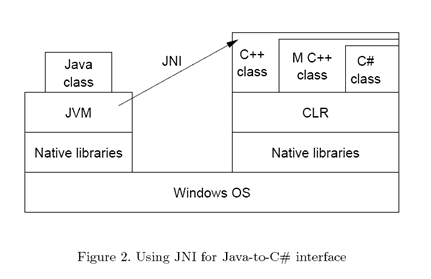
See: http://www.codeproject.com/KB/cross-platform/javacsharp.aspx
Subscribe to:
Posts (Atom)