Showing posts with label JSP. Show all posts

Tuesday, 17 December 2013

Cool tip of the Day: Isotope Javascript framework


This set of tags is scheduled to be part of a project I am working on ... but it is sooooo cool that I have to tell you about it!

Just try it click a few of the modes to see it in action!

Isotope

Features
Layout modes: Intelligent, dynamic layouts that can’t be achieved with CSS alone.
Filtering: Hide and reveal item elements easily with jQuery selectors.
Sorting: Re-order item elements with sorting. Sorting data can be extracted from just about anything.
Interoperability: features can be utilized together for a cohesive experience.
Progressive enhancement: Isotope’s animation engine takes advantage of the best browser features when available — CSS transitions and transforms, GPU acceleration — but will also fall back to JavaScript animation for lesser browsers.

Isotope requires jQuery 1.4.3 and greater.

Friday, 1 November 2013

Cool tool of the day: Sitemesh

Why Use SiteMesh?

SiteMesh is a lightweight and flexible Java web application framework that applies the Gang of Four decorator pattern to allow a clean separation of content from presentation.

I am posting it here as I have used this tool before and really like it but I just spent 10 minutes attempting to recall what it was called.

The jars for site mesh can be found on the Maven repository or but pasting this into your POM.xml:


<dependency>
    <groupId>opensymphony</groupId>
    <artifactId>sitemesh</artifactId>
    <version>2.4.2</version>
</dependency>
            

Saturday, 31 August 2013

Transitioning from ANT to MAVEN

Well I have been putting together ANT scripts for some time now and I have created some funky scripts.
My main issue with ANT was that I had to do all the hard work over and over again. I did work to include IVY into my projects but it was just hard work and the scripts grew in complexity.
I had heard good things about MAVEN so I thought I might as well get stuck into it.

After some successes I smacked straight into an issue regarding the precompilation of JSPs which seems to be a dead topic as the plugins do not seem to work correctly or only work if you are building a WAR.
I want to precompile some JSPs and put them into a JAR ... but no joy.
So right now I am looking back at the ANT scripts and looking how best to include them in to MAVEN.

The first clue was a post on Slashdot titled "Multiple antrun tasks in maven".

The key is to have a series of ANTRuns stuck into your MAVEN script as follows:
<plugin>

    <artifactId>maven-antrun-plugin</artifactId>
    <executions>

        <execution>
            <id>clean</id>
            <phase>clean</phase>
            <configuration>
                <tasks>
                    <echo message = ">>>>>>>>>>>>>>>>>>>>>>>>>>clean"/>
                </tasks>
            </configuration>
            <goals>
                <goal>run</goal>
            </goals>
        </execution>

        <execution>
            <id>compile</id>
            <phase>compile</phase>
            <configuration>
                <tasks>
                    <echo message = ">>>>>>>>>>>>>>>>>>>>>>>>>>>>compile"/>
                </tasks>
            </configuration>
            <goals>
                <goal>run</goal>
            </goals>
        </execution>

        <execution>
            <id>package</id>
            <phase>package</phase>
            <configuration>
                <tasks>
                    <echo message = ">>>>>>>>>>>>>>>>>>>>>>>>>>>>package"/>
                </tasks>
            </configuration>
            <goals>
                <goal>run</goal>
            </goals>
        </execution>

    </executions>

</plugin>
asas

Thursday, 26 January 2012

Setting up Eclipse check list (Part 6) - PHP Web development with Tomcat

If you like Xdebug, please consider a donation.
At this point we have to ensure that we have PHP running fine in Tomcat.
  1. Create a new JSP Project called jsp-php.
    Give it a site folder called /webroot.
  2. Give it an index.html file and run the site up to see if it works. (which it should).
  3. Now create it a file (& folder) called /jsp/default.jsp which should have some thing like:

    <%@ page language="java" contentType="text/html; charset=ISO-8859-1"
        pageEncoding="ISO-8859-1"
        import="java.util.Date"
        %>
    <!DOCTYPE html PUBLIC "-//W3C//DTD HTML 4.01 Transitional//EN" "http://www.w3.org/TR/html4/loose.dtd">
    <html>
        <head>
            <meta http-equiv="Content-Type" content="text/html; charset=ISO-8859-1">
            <link href='http://fonts.googleapis.com/css?family=Cuprum' rel='stylesheet' type='text/css'>
            <link href="../basic.css"  rel="stylesheet" type="text/css" media="screen" />
            <title>Insert title here</title>
        </head>
        <body>
            <h1>New JSP Page</h1>
            <%
            Date now = new Date();
            %>
            Now = <%=now.toString() %>
        </body>
    </html>


    in it.

    Test it to make sure you haven't f****d up Tomcat.
  4. Now create a file (&folder called) /php/index.php which should have something like this:
    <!DOCTYPE html PUBLIC "-//W3C//DTD HTML 4.01 Transitional//EN" "http://www.w3.org/TR/html4/loose.dtd">
    <html>
        <head>
            <meta http-equiv="Content-Type" content="text/html; charset=ISO-8859-1">
            <link href='http://fonts.googleapis.com/css?family=Cuprum' rel='stylesheet' type='text/css'>
            <link href="../basic.css"  rel="stylesheet" type="text/css" media="screen" />
            <title>Insert title here</title>
        </head>
        <body>
            <h1>New PHP Page</h1>
    <p><a href="phpinfo.php">PHP Info</a></p>
    <?php        
            $brush_price = 5;
           
            echo "<table border=\"1\" align=\"center\">";
            echo "<tr><th>Quantity</th>";
            echo "<th>Price</th></tr>";
            for ( $counter = 10; $counter <= 100; $counter += 10) {
                echo "<tr><td>";
                echo $counter;
                echo "</td><td>";
                echo $brush_price * $counter;
                echo "</td></tr>";
            }
            echo "</table>";
    ?>
        </body>
    </html>


    Give it a run and check it works.
  5. Now create a phpinfo.php page.
    Browse to it and ensure you have the correct PHP server and ini file in use.
    Look out for the Zend logo at the bottom.
  6. Assuming this is fine and JSP & PHP both run now we need to set up debugging.
    This is done initially by adding the following options to the top of your php.ini file:

    [PHP]

    ; XDEBUG
    zend_extension = C:\development\php\php_5.3.9\ext\php_xdebug-2.1.2-5.3-vc9.dll
    ; Adding these lines will stop you debugging when calling Eclipse/PHP/Run as php script
    xdebug.default_enable=On
    xdebug.remote_enable=On
    xdebug.remote_host=127.0.0.1
    xdebug.remote_port=9000;
    xdebug.remote_handler="dbgp";
    xdebug.remote_autostart=off


    Now it is possible that all these parts need to be in a [xdebug] section but the jury is still out on that one.
    Please note that from this point onwards this php.ini is useless for "run as script".


    For more on these options go to http://xdebug.org/docs/remote.

    Be extra careful with xdebug.remote_host, this is the host where you develop and run your Eclipse, and PHP will try and connect to Eclipse when debugging is enabled.

    Also make sure that the zend_extension part was not added automatically by the installation, if it was don't add it again.

    If there is any mention of the Zend debugger in you php.ini file, you will have to comment that out.

    Restart Tomcat or whatever web server you're using and make sure the Xdebug installation was correct by running a simple PHP script that contains phpinfo() and searching for "xdebug".
  7. Now the tricky part, Eclipse has to be configured to accept debugging sessions from XDebug.


    Follow the steps below:

    1. Open your project in Eclipse(With PDT installed);
    2. In the main menu select Project->Properties;
    3. On the left side of the window select "PHP Debug" and then click on "Configure Workspace Settings"
    4. On the "PHP Debugger" dropdown select Xdebug and click "Apply";
    5. Click "Configure" to the right of Xdebug in the same window.
    6. Select Xdebug and click "Configure".
    7. On the "Accept remote session(JIT)" select "any" and click "OK". This is extremely important and this is where most people get stuck.

    That's it, Eclipse is now configured.

    Your PHP Preferences should look like this:

    Please note the PHP Executable  is set.
    If it isn't the debugging ISN'T going to work.
    If you choose the incorrect debugger, your project might not execute at all or could execute, but not stop at breakpoints.
    If nothing appears in your drop list it is probably because Eclipse is attempting to help you.
    Only PHP executables that are compatible with your selected PHP Debugger appear in this drop list. Select the correct one and the list populates (/facepalm).
  8. You should be able to invoke debug as... --> PHP Script on any of the scripts.
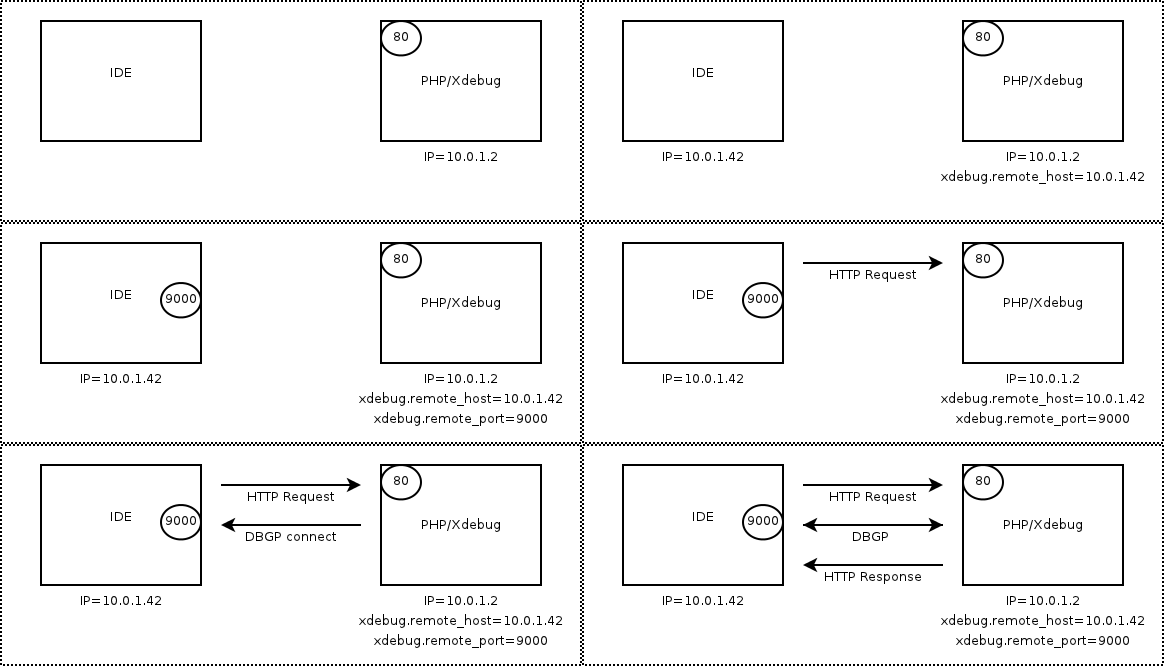
  9. Now all we need is to be able to be in control of our debugging sessions.
    To do this you have to tell the IDE that you are attempting to connect to it.
    The comms works something like this:


    To connect to the IDE/debugger is to add an option to the URL as follows: "http://localhost/jsp-php/php/index.php?XDEBUG_SESSION_STOP_NO_EXEC=ECLIPSE_DBGP&KEY=13275950773634"

    The absolutely vital part of this is the ?XDEBUG_SESSION_START=ECLIPSE_DBGP parameter.

    An easy (and reliable) way to get this to work if to invoke debug as... --> PHP Web Page. This is by far the best way to proceed as it helps eclipse know which PHP maps to which URL.

    Make sure you have [_] Open in Browser un-ticked so that it invokes your default web browser.
    When you do so it will show the following to you...

    The file I am invoking is phpinfo.php and it appears as http://localhost/jsp-php/webroot/php/phpinfo.php which is not quite right. In this case it is http://localhost/jsp-php/php/phpinfo.php clicking OK will show the script and if you have a break point set then it appears.
    I believe this gets round the problem of the path of the file not being what we need it to be.
    The URL that appears in the browser is ... http://localhost/jsp-php/php/phpinfo.php?XDEBUG_SESSION_START=ECLIPSE_DBGP&KEY=13282801757752

    It is also importat NOT to have two copies of eclipse running at once as they will both be listening on the same port! Obvious when pointed out but that doesn't stop you doing it.

    For this we will need to install a Firefox extension called "easy Xdebug"(yes Firefox, you're not developing PHP in IE are you?).
    The easiest way to set this up is using a Firefox Plugin called "Easy XDebug".
    When installed you will find a little icon on the foot of each page.

    But turning it on is not obvious. Go to Firefox;alt;View-->Toolbars-->Addons Toolbar.
  10. Now put a break point in your file.
  11. Click the little bug icon and refresh the page.
    The icon changes as follows:
  12. Step through the code with coding and variable fun and goodness;
  13. Click the icon to turn it off.
    Please not it won't work for other browsers just the one you are in.
 And that's it JSP/PHP & Tomcat in one neat package.


<<Back  | Next>>

Monday, 23 January 2012

LIferay - new liferay project "Failed while installing Liferay Portlet 6.0"

While attempting to create my first Liferay project I found my self facing an error.
"Failed while installing Liferay Portlet 6.0. Most of the project seemed to be present but there were missing xml files and a missing icon. Being dumb and keen I perservered. The portlet would deploy but nothing worker right.
So having deleted everything I came in on the monday morning to start again.
A quick bit of research shows the following:
  • Installing Eclipe for Java developers does not include the web development tools;
    So a dynamic web site will not work;
  • Installing the Liferay IDE plugin fetches you the latest version of the tools which allows a dynamic web site 2.x to 3.0;

When a dynamic web project  is created, various information is assembled to specify the type of project, add standard libraries, set compiler options, control publishing tasks, set the build path and/or add an annotation processor. This information is specified by choosing facets during project creation. Facets can also be added and deleted from a project after its initial creation. To edit a project's facets, select Project > Properties > Project Facets.
Facets have version numbers. Not all facet version numbers can be changed (e.g., a facet available in only one version of software can not have other version numbers). Some facet version numbers are inter-dependent (e.g., if you choose the facet Java Annotation Processing, you must also have Java version 5.0 selected since Java versions 1.3 and 1.4 did not support annotation processing).
Doing some more research I discovered that the version number was related to the Servlet API version. A snippet from Wikipedia: http://en.wikipedia.org/wiki/Java_Servlet


Servlet 3.0December 2009JavaEE 6, JavaSE 6Pluggability, Ease of development, Async Servlet, Security, File Uploading
Servlet 2.5September 2005JavaEE 5, JavaSE 5Requires JavaSE 5, supports annotations
Servlet 2.4November 2003J2EE 1.4, J2SE 1.3web.xml

Tomcat 7 will support 2.2 and 3.0 (See ...) and if you attempt to create a standard dynamic web project everything goes fine.
So what to do .....

While creating your project click the Advance project configuration... button link.


After selecting this option select a lower version of the servlet protocol. Postings on the Liferay forum seem to indicate that 2.5 and 3.0 do not work.So choose 2.4 ...

This seems to work a treat!

Friday, 20 January 2012

Setting up Eclipse check list (Part 3) - Plugins

Plugins are probably very personal to what you are doing.
My set is for:
  • Java Development;
  • JSP tomcat development;
  • PHP development;
  • Webpage development;
  • Portal development; 
I have installed the plugins in the following order:

JSP tomcat development
  1. Download Sysdeo Eclipse Tomcat Launcher plugin.
    Version 3.3 seems best.
    Just follow their isntructions which basicly means unzip into - Eclipse_Home/dropins;
    Add the DevloaderTomcat7.jar to the <tomcat home>/lib folder. (Do not be tempted to placed them in the ext folder as it will not work).
    On restart you should see the tomcat icons:

    Under Windows-->Preferences; Tomcat point the Tomcat Home to your desired version of tomcat.
    Under Windows-->Preferences; Tomcat set up "Contect declaration mode" to be Context files as this prevents all the messy editing of a single server.xml file;
    Under Windows-->Preferences; Tomcat-->JVM Settings point the JVM to your desired version JRE. I suggest that this is set to be the JDK you installed earlier.
    Test the whole thing with a Java project containing a dummy bean class;
    Create a web project with a JSP that targets the bean;
    Link the projects;
    Set up the devloader's paths under "Project"-->Properties ; Tomcat-->DevLoader Classpath;
    A nice article is here in case my short-hand check list is too breif.
PHP development
It is fun to have PHP running in Tomcat and not too hard to achieve. Especially if you follow the instructions at PHP/Java Bridge or even here.
My notes on this are located here.
  1. Don't forget to Install and configure PHP on your machine or it won't work at all - duh!;
  2. Set up Tomcat to serve PHP by default.
  3. Create a new Tomcat project;
  4. Add a index.php file with this contents:

    <?php phpinfo();?>

  5. Start the server up and browse to it you should get the PHP info as a HTML page.
  6. Next setup debugging. This is detailed in the later post (here...)
Setting up PHP under Tomcat can be relatively straight forwards. However at some point you are going to want to run some form of web CMS. My current suggestion is ModX. (See...)

Portal development
I am doing portal development with Liferay so first you need to down load the Portlet SDK from their down load site.
A full set of install & configuration options are available on the LifeRay IDE setup pages or follow my short hand.
  1.  Down load the Liferay including tomcat and set it up as a stand-a-lone Tomcat instance (Liferay 6.1.0 contains tomcat 7.0.23).
    I don't know if it will run PHP out of the box more to add later.
    And the Sysdeo Devloader
    I installed my life ray to C:\development\java\tomcat\liferay-portal-6.1.0;
  2. Create a new eclipse workspace to preserve all the raw Tomcat setings and reconfigure with <liferay-portal-home>/tomcat-7.0.23 as your tomcat-home location;
    Don't forget to import all your Java preferences!
  3. Add under Windows-->Preferences; Tomcat-->JVM Settings

    -XX:MaxPermSize=512m
    -Xmx2048m

  4. Test your Liferay portal starts in Eclipse;
    (Start up time can be amlost 2mins 12000ms);
  5. Install the SDK
    Pick the latest comunity version of the Portlet SDK. Mine went into my java libs folder (C:\development\java\libs\liferay\6.1.0). Next add the Liferay IDE via the eclipse plugin installer which is under Help-->Install New Software ; Add. button to open Add Site dialog.Type in "Liferay IDE" for name and use the Indigo release stable URL - http://releases.liferay.com/tools/ide/eclipse/indigo/stable/.
    This comes with a large number of IDE dependencies so it is a good one to install after Sysdeo.
    If it has loaded correctly then it should add icons to your eclipse toolbar.
  6. Under Windows-->Preferences;Liferay -->Installed Plugin SDKs add the installed SDK (Mine is in :\development\java\libs\liferay\6.1.0);
  7. Under Windows-->Preferences;Liferay; Create a new Runtime environment  and choose "Liferay v6.1 CE (Tomcat 7)" ;
    Which in turn will want to know where tomcat is, (ie. C:\development\java\tomcat\liferay-portal-6.1.0\tomcat-7.0.23);
    This seems to add the correct libs when creating an addin. (???)
  8. Follow through and add a server configuration to handle this set up;
    Or it seems that the test packages will not operate correctly as there must be a target runtime to link to.


(Prev - Java preferences)

Thursday, 5 January 2012

Drupa Playing Nicely with Tomcat

Drupal is an open source content management platform powering millions of websites and applications. It’s built, used, and supported by an active and diverse community of people around the world.
Apache Tomcat is an open source software implementation of the Java Servlet and JavaServer Pages technologies. The Java Servlet and JavaServer Pages specifications are developed under the Java Community Process.  Apache Tomcat powers numerous large-scale, mission-critical web applications across a diverse range of industries and organizations.

HOWEVER they don't usually go together which is a shame.
I will be attempting to do just this based on the very good post by Chris Pliakas.

The article is very good but it assumes you have PHP installed already.
If you don't then you will get the following error in your Tomcat container:

SEVERE: Servlet /drupal threw load() exception
java.io.IOException: PHP not found. Please install php-cgi.


Therefore the steps are:


  • Move the "JavaBridge.war" file to the Tomcat webapps directory. Wait a few seconds for Tomcat to create a "JavaBridge" directory.
    sudo cp JavaBridge.war /var/lib/tomcat6/webapps/
    sleep 10

  • Copy the directory created by Tomcat and name it "drupal".
    sudo cp -rp /var/lib/tomcat6/webapps/JavaBridge /var/lib/tomcat6/webapps/drupal
  • Remove the index.php and test.php files from the "drupal" directory.
    sudo rm /var/lib/tomcat6/webapps/drupal/index.php /var/lib/tomcat6/webapps/drupal/test.php
     
  • Copy the Drupal files to the "drupal" directory, create the "settings.php" file.
    sudo rsync -aq drupal-7.0-rc4/ /var/lib/tomcat6/webapps/drupal
    sudo cp -p /var/lib/tomcat6/webapps/drupal/sites/default/default.settings.php /var/lib/tomcat6/webapps/drupal/sites/default/settings.php

Useful Tomcat Filters

  • urlrewritefilter
    A Java Web Filter with functionality like Apache's mod_rewrite.